Swarmia AI can now make changes in Swarmia for you. Ask in chat, and it’ll add an annotation, set up a working agreement, create an initiative, or save a key metric.
If you’re an admin or team lead who sets up working agreements, this means less configuration work. If you’re an engineering manager or leader, it’s a faster way to go from what you learned to a concrete next step.
Before Swarmia AI changes anything, it explains what it’s about to do, asks for any details it’s missing, and shows you a preview. It waits for your confirmation before applying the change. It also works with your permissions, so it can’t do anything you couldn’t do yourself. When it’s done, it shows what changed and which objects were affected. Where possible, you can inspect or undo the result.
We’re starting with actions that are easy to preview and understand. Broad settings changes and actions that rewrite historical data aren’t part of this release. More actions are coming soon, and you’ll be able to take action in Swarmia from the MCP too.
Here are a few things you can try:
- Set up a working agreement. Say “Set up a working agreement for unlinked PRs.” Swarmia AI asks for any limits it needs, shows you the setup, and applies it once you confirm. Notifications are part of working agreements, so you don’t need to ask for them separately.
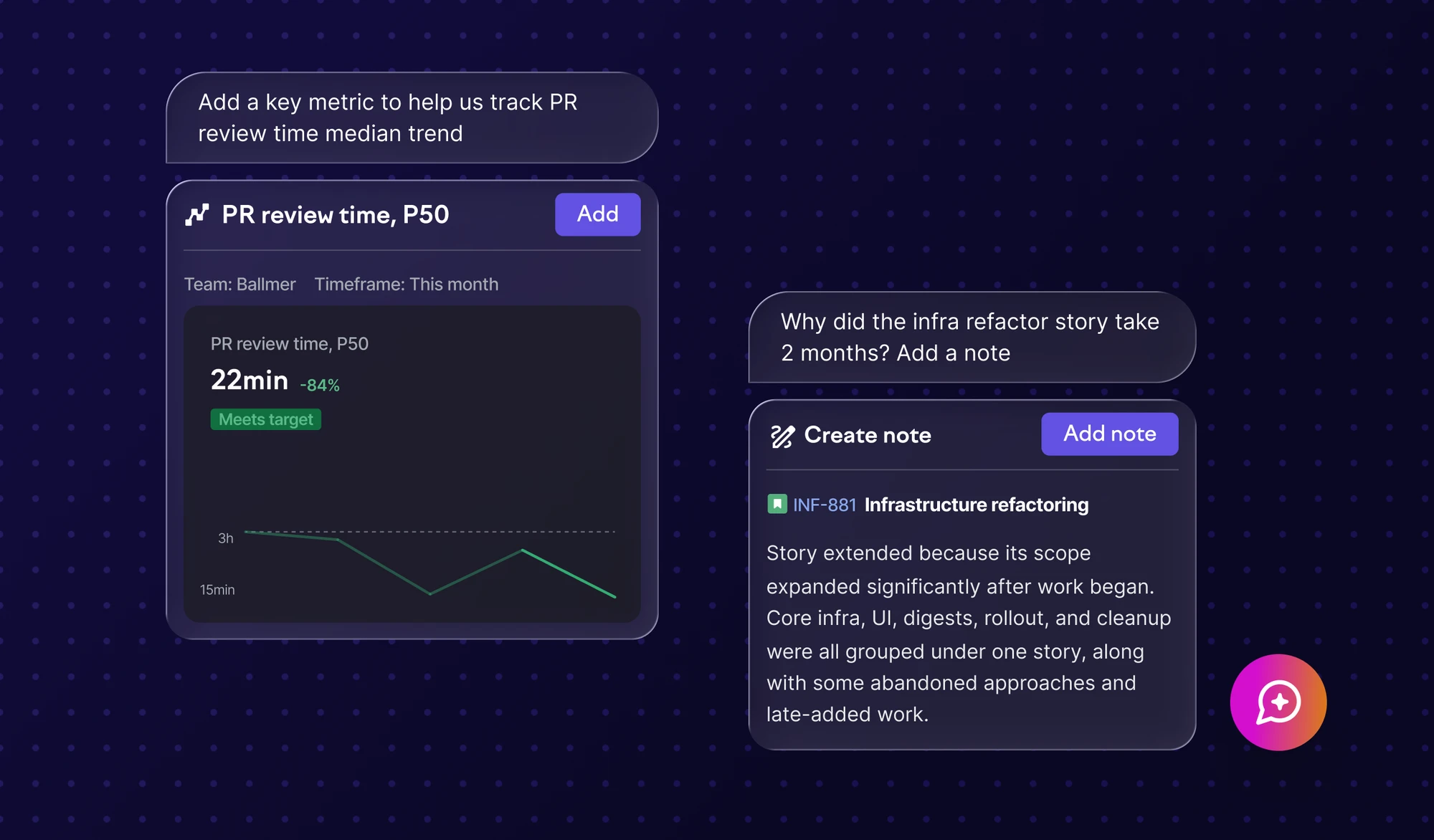
- Add an annotation. You can annotate pull requests, issues, and signals. When a signal flags a cycle time spike, say “Add an annotation explaining this cycle time spike.” Swarmia AI drafts it, and you can accept, deny, or edit it. Annotations written by AI are clearly marked, and you can edit or replace them anytime.
- Save a key metric. Found a useful metric while chatting with Swarmia AI? Ask it to save it as a key metric under your org-wide goals.
- Create an initiative. Say “Create an initiative for every Story with ‘billing API’ in the name.” Swarmia AI suggests a name and scope, shows you a preview, and creates it after you confirm.
To try it out, open Swarmia AI from the button in the bottom right corner or in the sidebar. For more on how Swarmia AI works, see the documentation.

'%20stroke='url(%23paint1_linear_110_4764)'%20stroke-width='0.5'/%3e%3cdefs%3e%3clinearGradient%20id='paint0_linear_110_4764'%20x1='19.651'%20y1='5.88916'%20x2='19.651'%20y2='27.8676'%20gradientUnits='userSpaceOnUse'%3e%3cstop%20offset='0.1'%20stop-color='%235549C2'/%3e%3cstop%20offset='0.9'%20stop-color='%2370C9E4'/%3e%3c/linearGradient%3e%3clinearGradient%20id='paint1_linear_110_4764'%20x1='19.651'%20y1='5.88916'%20x2='19.651'%20y2='27.8676'%20gradientUnits='userSpaceOnUse'%3e%3cstop%20stop-color='%234D3DDD'/%3e%3cstop%20offset='0.322115'%20stop-color='%2364CDED'/%3e%3cstop%20offset='0.5'%20stop-color='%23736CFF'/%3e%3cstop%20offset='0.75'%20stop-color='%2364CDED'/%3e%3cstop%20offset='1'%20stop-color='%234D3DDD'/%3e%3c/linearGradient%3e%3c/defs%3e%3c/svg%3e)


'%20stroke='url(%23paint1_linear_110_4820)'%20stroke-width='0.5'/%3e%3cdefs%3e%3clinearGradient%20id='paint0_linear_110_4820'%20x1='20.0002'%20y1='4.11661'%20x2='20.0002'%20y2='33.8832'%20gradientUnits='userSpaceOnUse'%3e%3cstop%20offset='0.1'%20stop-color='%235549C2'/%3e%3cstop%20offset='0.9'%20stop-color='%2370C9E4'/%3e%3c/linearGradient%3e%3clinearGradient%20id='paint1_linear_110_4820'%20x1='20.0002'%20y1='4.11661'%20x2='20.0002'%20y2='33.8832'%20gradientUnits='userSpaceOnUse'%3e%3cstop%20stop-color='%234D3DDD'/%3e%3cstop%20offset='0.322115'%20stop-color='%2364CDED'/%3e%3cstop%20offset='0.5'%20stop-color='%23736CFF'/%3e%3cstop%20offset='0.75'%20stop-color='%2364CDED'/%3e%3cstop%20offset='1'%20stop-color='%234D3DDD'/%3e%3c/linearGradient%3e%3c/defs%3e%3c/svg%3e)

'%3e%3cpath%20d='M12.9414%2023.0626C12.6251%2023.0626%2012.3687%2023.319%2012.3687%2023.6354L12.3687%2025.1077C12.3687%2025.424%2012.6251%2025.6805%2012.9414%2025.6805H12.9868C14.4524%2025.6805%2016.6386%2025.6805%2018.1041%2025.6805H18.1622C18.4785%2025.6805%2018.735%2025.424%2018.735%2025.1077L18.735%2023.6354C18.735%2023.319%2018.4785%2023.0626%2018.1622%2023.0626H12.9414Z'%20fill='%23899FCF'/%3e%3cpath%20d='M18.7514%2020.8724C18.7514%2020.0855%2019.1849%2019.3779%2019.764%2018.8452C21.016%2017.6937%2021.8005%2016.0418%2021.8005%2014.2067C21.8005%2010.727%2018.9796%207.90607%2015.4999%207.90607C12.0202%207.90607%209.19928%2010.727%209.19928%2014.2067C9.19928%2016.0435%209.9853%2017.6968%2011.2393%2018.8484C11.8181%2019.3799%2012.2511%2020.0866%2012.2511%2020.8724C12.2511%2021.1887%2012.5076%2021.4452%2012.8239%2021.4452H18.1786C18.495%2021.4452%2018.7514%2021.1887%2018.7514%2020.8724Z'%20fill='%23899FCF'/%3e%3c/g%3e%3cdefs%3e%3cclipPath%20id='clip0_111_18741'%3e%3crect%20width='19'%20height='19'%20fill='white'%20transform='translate(6%207.29321)'/%3e%3c/clipPath%3e%3c/defs%3e%3c/svg%3e)

'%3e%3cpath%20fill-rule='evenodd'%20clip-rule='evenodd'%20d='M24.0701%207.72604L20.7065%207.72604C20.3309%207.72604%2020.0265%208.03047%2020.0265%208.40599L20.0265%2011.7696C20.0265%2011.9911%2020.1324%2012.1879%2020.2964%2012.312L18.6479%2015.609L17.4892%2015.609L17.4944%2015.6038C16.454%2015.6038%2016.3965%2014.6207%2016.3934%2014.5122L16.3934%2012.3475C16.3934%2011.972%2016.089%2011.6676%2015.7134%2011.6676L12.3498%2011.6676C11.9743%2011.6676%2011.6699%2011.972%2011.6699%2012.3475L11.6699%2015.7111C11.6699%2015.748%2011.6728%2015.7842%2011.6785%2015.8195L9.81296%2019.5505L7.92995%2019.5505C7.55442%2019.5505%207.25%2019.8549%207.25%2020.2305L7.25%2023.594C7.25%2023.9696%207.55442%2024.274%207.92995%2024.274L11.2935%2024.274C11.6691%2024.274%2011.9735%2023.9696%2011.9735%2023.594L11.9735%2020.2305C11.9735%2020.0089%2011.8675%2019.8121%2011.7035%2019.688L13.352%2016.3911L14.6282%2016.3911C15.5514%2016.4636%2015.6058%2017.3707%2015.609%2017.4775L15.609%2019.6526C15.609%2020.0281%2015.9135%2020.3325%2016.289%2020.3325L19.6526%2020.3325C20.0281%2020.3325%2020.3325%2020.0281%2020.3325%2019.6526L20.3325%2016.289C20.3325%2016.2508%2020.3294%2016.2133%2020.3233%2016.1768L22.187%2012.4495L24.0701%2012.4495C24.4456%2012.4495%2024.75%2012.1451%2024.75%2011.7696L24.75%208.40599C24.75%208.03047%2024.4456%207.72604%2024.0701%207.72604Z'%20fill='%23899FCF'/%3e%3c/g%3e%3cdefs%3e%3cclipPath%20id='clip0_2772_12454'%3e%3crect%20width='20'%20height='20'%20fill='white'%20transform='translate(6%206)'/%3e%3c/clipPath%3e%3c/defs%3e%3c/svg%3e)


'%3e%3cpath%20d='M14.5615%2031.9046H25.9297C26.5036%2031.9046%2026.9697%2032.3701%2026.9697%2032.9437V35.7552L26.9639%2035.8616C26.9104%2036.3852%2026.4676%2036.7933%2025.9297%2036.7933H25.8037C25.1902%2036.7934%2024.6569%2037.0835%2024.1855%2037.4368C23.9487%2037.6144%2023.7206%2037.8125%2023.5029%2038.0062C23.2832%2038.2016%2023.0755%2038.3909%2022.8682%2038.5589C22.5182%2038.8424%2022.0724%2039.012%2021.5869%2039.012H18.8779C18.3922%2039.012%2017.9456%2038.8424%2017.5957%2038.5589C17.3883%2038.3909%2017.1806%2038.2016%2016.9609%2038.0062C16.7434%2037.8126%2016.516%2037.6143%2016.2793%2037.4368C15.8668%2037.1275%2015.4065%2036.8672%2014.8867%2036.8069L14.6611%2036.7933H14.5615C13.9879%2036.7931%2013.5235%2036.3288%2013.5234%2035.7552V32.9437C13.5235%2032.3701%2013.9878%2031.9047%2014.5615%2031.9046ZM20.3848%200.98761C27.847%200.98761%2033.8963%207.03716%2033.8965%2014.4993C33.8965%2018.4346%2032.2143%2021.9769%2029.5293%2024.4466C28.2431%2025.6297%2027.258%2027.2224%2027.2578%2029.014V29.015C27.2575%2029.5885%2026.7914%2030.054%2026.2178%2030.054H14.5586C13.985%2030.054%2013.5188%2029.5885%2013.5186%2029.015V29.014C13.5183%2027.2247%2012.5334%2025.6349%2011.248%2024.4544C8.55856%2021.9844%206.87305%2018.4383%206.87305%2014.4993C6.8732%207.03726%2012.9227%200.987767%2020.3848%200.98761ZM20.0518%2018.6585C19.6614%2018.6587%2019.3447%2018.976%2019.3447%2019.3665V26.6859C19.345%2027.0761%2019.6615%2027.3927%2020.0518%2027.3929H20.7178C21.1082%2027.3929%2021.4245%2027.0762%2021.4248%2026.6859V19.3665C21.4248%2018.9759%2021.1084%2018.6585%2020.7178%2018.6585H20.0518Z'%20fill='url(%23paint0_linear_166_518)'%20stroke='url(%23paint1_linear_166_518)'%20stroke-width='0.416667'/%3e%3c/g%3e%3cdefs%3e%3clinearGradient%20id='paint0_linear_166_518'%20x1='20.3849'%20y1='0.779602'%20x2='20.3849'%20y2='39.2204'%20gradientUnits='userSpaceOnUse'%3e%3cstop%20offset='0.1'%20stop-color='%235549C2'/%3e%3cstop%20offset='0.9'%20stop-color='%2370C9E4'/%3e%3c/linearGradient%3e%3clinearGradient%20id='paint1_linear_166_518'%20x1='20.3849'%20y1='0.779602'%20x2='20.3849'%20y2='39.2204'%20gradientUnits='userSpaceOnUse'%3e%3cstop%20stop-color='%234D3DDD'/%3e%3cstop%20offset='0.322115'%20stop-color='%2364CDED'/%3e%3cstop%20offset='0.5'%20stop-color='%23736CFF'/%3e%3cstop%20offset='0.75'%20stop-color='%2364CDED'/%3e%3cstop%20offset='1'%20stop-color='%234D3DDD'/%3e%3c/linearGradient%3e%3cclipPath%20id='clip0_166_518'%3e%3crect%20width='40'%20height='40'%20fill='white'/%3e%3c/clipPath%3e%3c/defs%3e%3c/svg%3e)


'%3e%3cpath%20d='M31.01%204.32568C29.1716%207.09907%2027.894%209.22748%2027.1194%2010.8218C26.607%2011.8752%2026.3824%2012.5664%2026.2971%2013.019C26.2127%2013.467%2026.2606%2013.7057%2026.3293%2013.8325V13.8335L26.3323%2013.8384C26.3498%2013.8686%2026.3918%2013.9371%2026.4934%2013.9897C26.5848%2014.0371%2026.7072%2014.0629%2026.8733%2014.063C27.2288%2014.063%2027.6883%2013.9506%2028.2385%2013.7456C28.7927%2013.5391%2029.4565%2013.2322%2030.2258%2012.8267C31.7308%2012.0333%2033.655%2010.8562%2035.9875%209.3042L36.3762%209.79346C34.0139%2012.0094%2032.1768%2013.8719%2030.9241%2015.5464C29.6466%2017.2539%2028.9592%2018.7892%2028.9592%2020.3247V20.5327H28.9709C29.0302%2021.999%2029.7102%2023.4718%2030.9299%2025.1021C32.1828%2026.7767%2034.0204%2028.6388%2036.3831%2030.855L35.9924%2031.3442C33.66%2029.7923%2031.7356%2028.6151%2030.2307%2027.8218C29.4616%2027.4163%2028.7984%2027.1093%2028.2444%2026.9028C27.6942%2026.6978%2027.2346%2026.5854%2026.8792%2026.5854C26.7132%2026.5855%2026.5907%2026.6114%2026.4993%2026.6587C26.3975%2026.7114%2026.3556%2026.7809%2026.3381%2026.811L26.3352%2026.8149C26.2662%2026.9414%2026.2184%2027.179%2026.303%2027.6274C26.3883%2028.0793%2026.6129%2028.7705%2027.1252%2029.8267C27.8998%2031.4207%2029.1724%2033.5483%2031.0159%2036.3218L30.5256%2036.7114C28.3119%2034.3499%2026.4515%2032.5118%2024.7776%2031.2583C23.0705%2029.98%2021.5349%2029.2915%2019.9983%2029.2915C18.4617%2029.2915%2016.9261%2029.98%2015.219%2031.2583C13.545%2032.5119%2011.6839%2034.3496%209.46997%2036.7114L8.97974%2036.3218C10.818%2033.5485%2012.0967%2031.4209%2012.8713%2029.8267C13.3835%2028.7736%2013.6082%2028.083%2013.6936%2027.6304C13.7782%2027.1812%2013.7304%2026.9415%2013.6614%2026.8149L13.6584%2026.811L13.6096%2026.7437C13.5843%2026.716%2013.5483%2026.6851%2013.4973%2026.6587C13.4059%2026.6114%2013.2834%2026.5855%2013.1174%2026.5854C12.7619%2026.5854%2012.303%2026.6978%2011.7532%2026.9028C11.1995%2027.1093%2010.5367%2027.4163%209.76782%2027.8218C8.26358%2028.6151%206.33836%2029.7912%204.00317%2031.3433L3.61841%2030.855C5.98121%2028.6386%207.81958%2026.7767%209.07251%2025.1021C10.3498%2023.3947%2011.0372%2021.86%2011.0374%2020.3247C11.0374%2018.7892%2010.35%2017.2539%209.07251%2015.5464C7.81948%2013.8716%205.9815%2012.0091%203.61841%209.79248L4.00317%209.3042C6.33861%2010.8564%208.26347%2012.0333%209.76782%2012.8267C10.5367%2013.2322%2011.1995%2013.5391%2011.7532%2013.7456C12.303%2013.9506%2012.7619%2014.063%2013.1174%2014.063C13.2835%2014.063%2013.4059%2014.037%2013.4973%2013.9897C13.5988%2013.9372%2013.6409%2013.8687%2013.6584%2013.8384L13.6614%2013.8335C13.7304%2013.707%2013.7783%2013.4696%2013.6936%2013.021C13.6083%2012.5691%2013.3837%2011.8779%2012.8713%2010.8218H12.8704C12.0956%209.22166%2010.8232%207.09888%208.97974%204.32568L9.46997%203.93701C11.6838%206.29874%2013.5434%208.13651%2015.2161%209.39014C16.9217%2010.6684%2018.4559%2011.3578%2019.9924%2011.3579C21.529%2011.3579%2023.0646%2010.6685%2024.7717%209.39014C26.4457%208.13661%2028.3061%206.29858%2030.5198%203.93701L31.01%204.32568Z'%20fill='url(%23paint0_linear_166_603)'%20stroke='url(%23paint1_linear_166_603)'%20stroke-width='0.416667'/%3e%3c/g%3e%3cdefs%3e%3clinearGradient%20id='paint0_linear_166_603'%20x1='20.001'%20y1='3.65479'%20x2='20.001'%20y2='36.9939'%20gradientUnits='userSpaceOnUse'%3e%3cstop%20offset='0.1'%20stop-color='%235549C2'/%3e%3cstop%20offset='0.9'%20stop-color='%2370C9E4'/%3e%3c/linearGradient%3e%3clinearGradient%20id='paint1_linear_166_603'%20x1='20.001'%20y1='3.65479'%20x2='20.001'%20y2='36.9939'%20gradientUnits='userSpaceOnUse'%3e%3cstop%20stop-color='%234D3DDD'/%3e%3cstop%20offset='0.322115'%20stop-color='%2364CDED'/%3e%3cstop%20offset='0.5'%20stop-color='%23736CFF'/%3e%3cstop%20offset='0.75'%20stop-color='%2364CDED'/%3e%3cstop%20offset='1'%20stop-color='%234D3DDD'/%3e%3c/linearGradient%3e%3cclipPath%20id='clip0_166_603'%3e%3crect%20width='33.3333'%20height='33.3333'%20fill='white'%20transform='translate(3.33167%203.65479)'/%3e%3c/clipPath%3e%3c/defs%3e%3c/svg%3e)

'%20fill='white'/%3e%3cpath%20d='M7.19995%2021.6808C7.19995%2020.3553%208.27447%2019.2808%209.59995%2019.2808H38.3999C39.7254%2019.2808%2040.7999%2020.3553%2040.7999%2021.6808V36.0808C40.7999%2037.4062%2039.7254%2038.4808%2038.4%2038.4808H9.59995C8.27447%2038.4808%207.19995%2037.4062%207.19995%2036.0808V21.6808Z'%20fill='%230A328F'/%3e%3cpath%20d='M22.4787%2029.5558L12.0292%2023.407C11.4796%2023.0835%2011.1421%2022.4934%2011.1421%2021.8556V13.8165C11.1421%2012.491%2012.2166%2011.4165%2013.5421%2011.4165H34.4584C35.7838%2011.4165%2036.8584%2012.491%2036.8584%2013.8165V21.8556C36.8584%2022.4934%2036.5209%2023.0835%2035.9712%2023.407L25.5216%2029.5558C24.5826%2030.1084%2023.4178%2030.1084%2022.4787%2029.5558Z'%20fill='%2340D1F1'/%3e%3cpath%20d='M16.8351%2016.5635L31.1649%2016.5635'%20stroke='%230A328F'%20stroke-width='2.4'%20stroke-linecap='round'%20stroke-linejoin='round'/%3e%3cpath%20d='M16.8351%2021.2124L24%2021.1465'%20stroke='%230A328F'%20stroke-width='2.4'%20stroke-linecap='round'%20stroke-linejoin='round'/%3e%3c/svg%3e)


